AI Revolution in 3D Creation: How Womp Spark is Democratizing Digital Design
The barrier to entry couldn't be lower. Create a free Womp account, start a conversation with Spark, and describe what you want to create. That's it.
The barrier to entry couldn't be lower. Create a free Womp account, start a conversation with Spark, and describe what you want to create. That's it.
Transform your distributed design team with real-time collaboration. Expert guide to tools, workflows, and strategies that accelerate 3D product development by 30%.Transform your product development with 3D printing. Expert guide to lattice structures, sustainable materials, and integrated workflows for manufacturers in 2025.Design 3D models with full keyboard navigation and accessibility features in Womp. Browser-based platform eliminates technical barriers. No downloads, complex interfaces, or expensive hardware required.Creating photorealistic 3D renders traditionally requires sourcing texture maps from multiple websites, managing complex material nodes, and adjusting dozens of technical parameters. Most beginners struggle with UV mapping, PBR workflows, and shader networks.
Womp provides 500+ professionally crafted materials that apply with one click - no texture mapping knowledge required.
What are Super Materials?
Expertly designed photorealistic materials featuring authentic surface textures, bump mapping, reflections, and physical properties. The collection includes realistic representations of wood grain, metal finishes, stone surfaces, fabrics, glass, plastics, concrete, leather, and organic materials.
Key advantages:Over 500 materials with continuous additions
One-click application to any object
Full customization without technical complexity
Compatible with all Womp shapes and imported meshes
Integrates with Goop blending and Stain paintingMaterial categories available
Natural materials:Wood species with authentic grain patterns
Stone varieties including marble, granite, limestone
Clay textures for sculpted appearances
Organic surfaces like leather and skin tonesManufactured materials:Metals with accurate reflection properties (steel, aluminum, copper, brass)
Plastics in matte, glossy, and textured finishes
Glass variations from clear to frosted
Concrete and industrial surfacesTextile materials:Fabric weaves and patterns
Canvas and cloth textures
Synthetic textile surfaces
Specialized material finishesApplying Super Materials
Select object in canvas, open properties panel, navigate to materials section, choose from Super Materials collection. Material applies instantly with immediate visual preview. All customization controls appear automatically in properties panel.
Application scope:Standard Womp shapes and primitives
Curve objects and individual curve points
Imported 3D models and meshes
Complex objects created with Goop blendingCustomization controls
Override color
Maintains object's existing color while applying material's texture properties. Preserves color schemes when adding realistic surface detail. Essential for brand consistency and design specifications.
Use cases: Product mockups requiring specific brand colors, maintaining color palettes across designs, adding texture without color changes.
Lock texture
Links texture size to object scale, preventing distortion during resizing. Textures scale proportionally with objects maintaining consistent surface appearance. Eliminates stretched or compressed texture artifacts.
Workflow benefit: Resize objects freely without adjusting texture settings separately. Particularly useful for iterative design processes.
Texture positioning
Offset controls (X, Y, Z): Move texture across surface without moving object geometry. Fine-tune pattern alignment and positioning.
Rotation control: Rotate texture independently from object orientation. Align wood grain, adjust pattern directions, control visual flow.
Scale control: Adjust texture size relative to object surface. Enlarge or reduce pattern detail independently from object dimensions.
Height control: Modify bump mapping depth and surface relief intensity. Control how dramatically texture affects perceived surface topology.
Material colors
Many materials include color pickers for customization beyond base appearance. Some materials offer single color control, others provide multiple color selections for complex surfaces.
Application: Match specific design requirements, create color variations, coordinate material palettes across scenes.
Advanced material techniques
Goop blending integration
When objects blend via Goop tool, applied materials transition smoothly between surfaces. Creates organic material mixing effects impossible with traditional Boolean operations.
Creative applications:Gradual transitions between wood and metal
Organic material fusions for fantasy designs
Realistic wear patterns and material degradation
Composite surfaces with mixed propertiesStain tool layering
Apply Super Material as base layer, then paint additional textures using Stain tool for complex layered effects.
Process requirements:Apply Super Material to base object
Position stained object beneath target in scene list
Use Stain tool to paint secondary textures
Layer multiple stain effects for complexityResults: Multi-material surfaces, painted details on textured bases, custom wear and weathering effects.
Material types comparison
Normal materials: Basic solid colors without texture detail. Fastest rendering performance, suitable for simple designs and color blocking.
Pro materials: Enhanced materials with texture properties and improved surface quality. Middle tier between basic and photorealistic.
Super Materials: Full photorealistic rendering with comprehensive texture mapping, bump mapping, reflection properties, and extensive customization. Highest visual quality with increased processing requirements.
Performance considerations
Super Materials require more computational power than simpler material types due to:High-resolution texture map processing
Complex bump mapping calculations
Realistic light interaction simulations
Multiple texture layer computationsOptimization strategies:Apply Super Materials to foreground and hero objects
Use simpler materials for background elements
Balance visual quality against scene complexity
Test render performance during developmentTechnical specifications
Material count: 500+ expertly crafted options with regular additions
Compatibility: All Womp object types, curves, curve points, imported meshes, Goop-blended geometry
Customization parameters:Override color (toggle)
Lock texture (toggle)
Material colors (varies by material)
Texture offset (X, Y, Z coordinates)
Texture rotation (angle control)
Texture scale (size multiplier)
Texture height (depth intensity)Pro subscription requirement
Super Materials access requires Womp Pro subscription ($12.99/month or $119.99/year). Included with all Pro features without additional cost.
Also included in Pro:Professional 3D asset library
4K unlimited exports and 60 FPS videos
Advanced shapes (torus, pyramid)
SVG tools and custom font upload
10% 3D printing discount
Enhanced collaboration featuresFree users access Normal materials only. Pro materials and Super Materials require active subscription.
Use cases by industry
Product visualization: Apply accurate material representations to product designs. Wood finishes for furniture, metal textures for electronics, fabric materials for soft goods.
Architectural rendering: Realistic building material representation. Stone facades, wood flooring, concrete structures, glass windows with accurate properties.
Character design: Organic materials for skin, clothing fabrics, leather accessories. Realistic surface quality for character props and environments.
Jewelry design: Precious metal finishes, polished surfaces, gemstone materials. Professional quality renders for client presentations.
Industrial design: Technical materials for manufactured products. Plastic housings, metallic components, rubber elements, composite materials.
Best practices
Material selection strategy:Choose materials matching real-world references
Consider lighting conditions affecting reflective materials
Preview materials before committing to final choice
Test materials under different environmental lightingTexture customization approach:Start with default settings, make incremental adjustments
Use reference images to guide scale and positioning
Test appearance under multiple lighting scenarios
Balance detail level with rendering performanceScene optimization workflow:Prioritize Super Materials for important visual elements
Apply to hero objects and foreground geometry
Use simpler materials for secondary elements
Monitor real-time performance during material applicationGetting startedUpgrade to Womp Pro for Super Materials access
Select target object in scene
Open properties panel materials section
Browse 500+ Super Materials collection
Click material for instant application
Customize using available controls
Adjust texture positioning and scale as neededStart creating with Super Materials - requires Womp Pro subscription.
Learn more:Womp Pro features
Material system guide
Getting started with 3D modelingExternal references:PBR material workflow guide
Understanding material properties
3D texture resources comparison
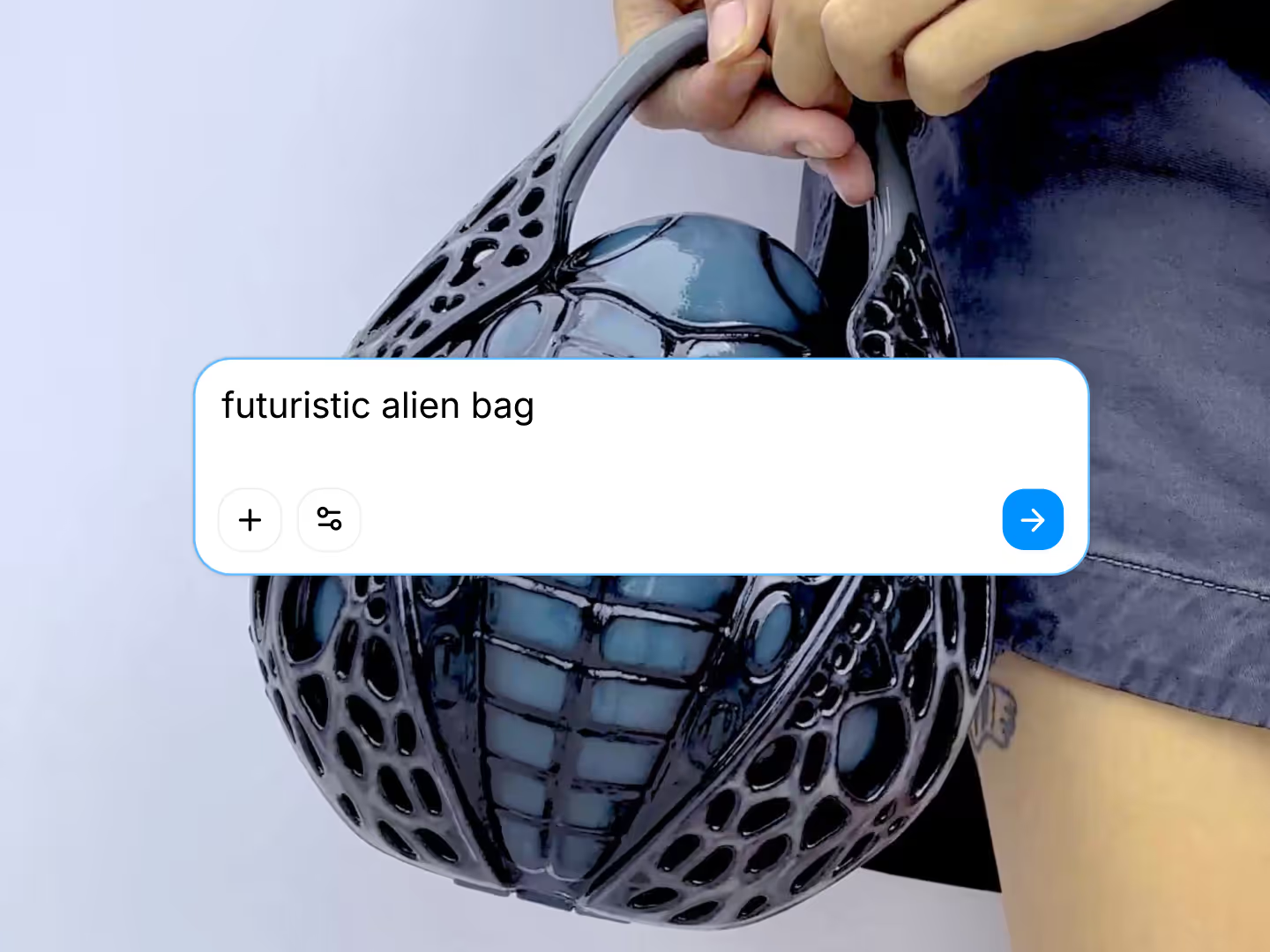
Discover how AI generation is transforming 3D design workflows. Learn practical applications, best practices, and how Womp Spark accelerates creative work.
Design 3D models with full keyboard navigation and accessibility features in Womp. Browser-based platform eliminates technical barriers. No downloads, complex interfaces, or expensive hardware required.Creating photorealistic 3D renders traditionally requires sourcing texture maps from multiple websites, managing complex material nodes, and adjusting dozens of technical parameters. Most beginners struggle with UV mapping, PBR workflows, and shader networks.
Womp provides 500+ professionally crafted materials that apply with one click - no texture mapping knowledge required.
What are Super Materials?
Expertly designed photorealistic materials featuring authentic surface textures, bump mapping, reflections, and physical properties. The collection includes realistic representations of wood grain, metal finishes, stone surfaces, fabrics, glass, plastics, concrete, leather, and organic materials.
Key advantages:Over 500 materials with continuous additions
One-click application to any object
Full customization without technical complexity
Compatible with all Womp shapes and imported meshes
Integrates with Goop blending and Stain paintingMaterial categories available
Natural materials:Wood species with authentic grain patterns
Stone varieties including marble, granite, limestone
Clay textures for sculpted appearances
Organic surfaces like leather and skin tonesManufactured materials:Metals with accurate reflection properties (steel, aluminum, copper, brass)
Plastics in matte, glossy, and textured finishes
Glass variations from clear to frosted
Concrete and industrial surfacesTextile materials:Fabric weaves and patterns
Canvas and cloth textures
Synthetic textile surfaces
Specialized material finishesApplying Super Materials
Select object in canvas, open properties panel, navigate to materials section, choose from Super Materials collection. Material applies instantly with immediate visual preview. All customization controls appear automatically in properties panel.
Application scope:Standard Womp shapes and primitives
Curve objects and individual curve points
Imported 3D models and meshes
Complex objects created with Goop blendingCustomization controls
Override color
Maintains object's existing color while applying material's texture properties. Preserves color schemes when adding realistic surface detail. Essential for brand consistency and design specifications.
Use cases: Product mockups requiring specific brand colors, maintaining color palettes across designs, adding texture without color changes.
Lock texture
Links texture size to object scale, preventing distortion during resizing. Textures scale proportionally with objects maintaining consistent surface appearance. Eliminates stretched or compressed texture artifacts.
Workflow benefit: Resize objects freely without adjusting texture settings separately. Particularly useful for iterative design processes.
Texture positioning
Offset controls (X, Y, Z): Move texture across surface without moving object geometry. Fine-tune pattern alignment and positioning.
Rotation control: Rotate texture independently from object orientation. Align wood grain, adjust pattern directions, control visual flow.
Scale control: Adjust texture size relative to object surface. Enlarge or reduce pattern detail independently from object dimensions.
Height control: Modify bump mapping depth and surface relief intensity. Control how dramatically texture affects perceived surface topology.
Material colors
Many materials include color pickers for customization beyond base appearance. Some materials offer single color control, others provide multiple color selections for complex surfaces.
Application: Match specific design requirements, create color variations, coordinate material palettes across scenes.
Advanced material techniques
Goop blending integration
When objects blend via Goop tool, applied materials transition smoothly between surfaces. Creates organic material mixing effects impossible with traditional Boolean operations.
Creative applications:Gradual transitions between wood and metal
Organic material fusions for fantasy designs
Realistic wear patterns and material degradation
Composite surfaces with mixed propertiesStain tool layering
Apply Super Material as base layer, then paint additional textures using Stain tool for complex layered effects.
Process requirements:Apply Super Material to base object
Position stained object beneath target in scene list
Use Stain tool to paint secondary textures
Layer multiple stain effects for complexityResults: Multi-material surfaces, painted details on textured bases, custom wear and weathering effects.
Material types comparison
Normal materials: Basic solid colors without texture detail. Fastest rendering performance, suitable for simple designs and color blocking.
Pro materials: Enhanced materials with texture properties and improved surface quality. Middle tier between basic and photorealistic.
Super Materials: Full photorealistic rendering with comprehensive texture mapping, bump mapping, reflection properties, and extensive customization. Highest visual quality with increased processing requirements.
Performance considerations
Super Materials require more computational power than simpler material types due to:High-resolution texture map processing
Complex bump mapping calculations
Realistic light interaction simulations
Multiple texture layer computationsOptimization strategies:Apply Super Materials to foreground and hero objects
Use simpler materials for background elements
Balance visual quality against scene complexity
Test render performance during developmentTechnical specifications
Material count: 500+ expertly crafted options with regular additions
Compatibility: All Womp object types, curves, curve points, imported meshes, Goop-blended geometry
Customization parameters:Override color (toggle)
Lock texture (toggle)
Material colors (varies by material)
Texture offset (X, Y, Z coordinates)
Texture rotation (angle control)
Texture scale (size multiplier)
Texture height (depth intensity)Pro subscription requirement
Super Materials access requires Womp Pro subscription ($12.99/month or $119.99/year). Included with all Pro features without additional cost.
Also included in Pro:Professional 3D asset library
4K unlimited exports and 60 FPS videos
Advanced shapes (torus, pyramid)
SVG tools and custom font upload
10% 3D printing discount
Enhanced collaboration featuresFree users access Normal materials only. Pro materials and Super Materials require active subscription.
Use cases by industry
Product visualization: Apply accurate material representations to product designs. Wood finishes for furniture, metal textures for electronics, fabric materials for soft goods.
Architectural rendering: Realistic building material representation. Stone facades, wood flooring, concrete structures, glass windows with accurate properties.
Character design: Organic materials for skin, clothing fabrics, leather accessories. Realistic surface quality for character props and environments.
Jewelry design: Precious metal finishes, polished surfaces, gemstone materials. Professional quality renders for client presentations.
Industrial design: Technical materials for manufactured products. Plastic housings, metallic components, rubber elements, composite materials.
Best practices
Material selection strategy:Choose materials matching real-world references
Consider lighting conditions affecting reflective materials
Preview materials before committing to final choice
Test materials under different environmental lightingTexture customization approach:Start with default settings, make incremental adjustments
Use reference images to guide scale and positioning
Test appearance under multiple lighting scenarios
Balance detail level with rendering performanceScene optimization workflow:Prioritize Super Materials for important visual elements
Apply to hero objects and foreground geometry
Use simpler materials for secondary elements
Monitor real-time performance during material applicationGetting startedUpgrade to Womp Pro for Super Materials access
Select target object in scene
Open properties panel materials section
Browse 500+ Super Materials collection
Click material for instant application
Customize using available controls
Adjust texture positioning and scale as neededStart creating with Super Materials - requires Womp Pro subscription.
Learn more:Womp Pro features
Material system guide
Getting started with 3D modelingExternal references:PBR material workflow guide
Understanding material properties
3D texture resources comparison
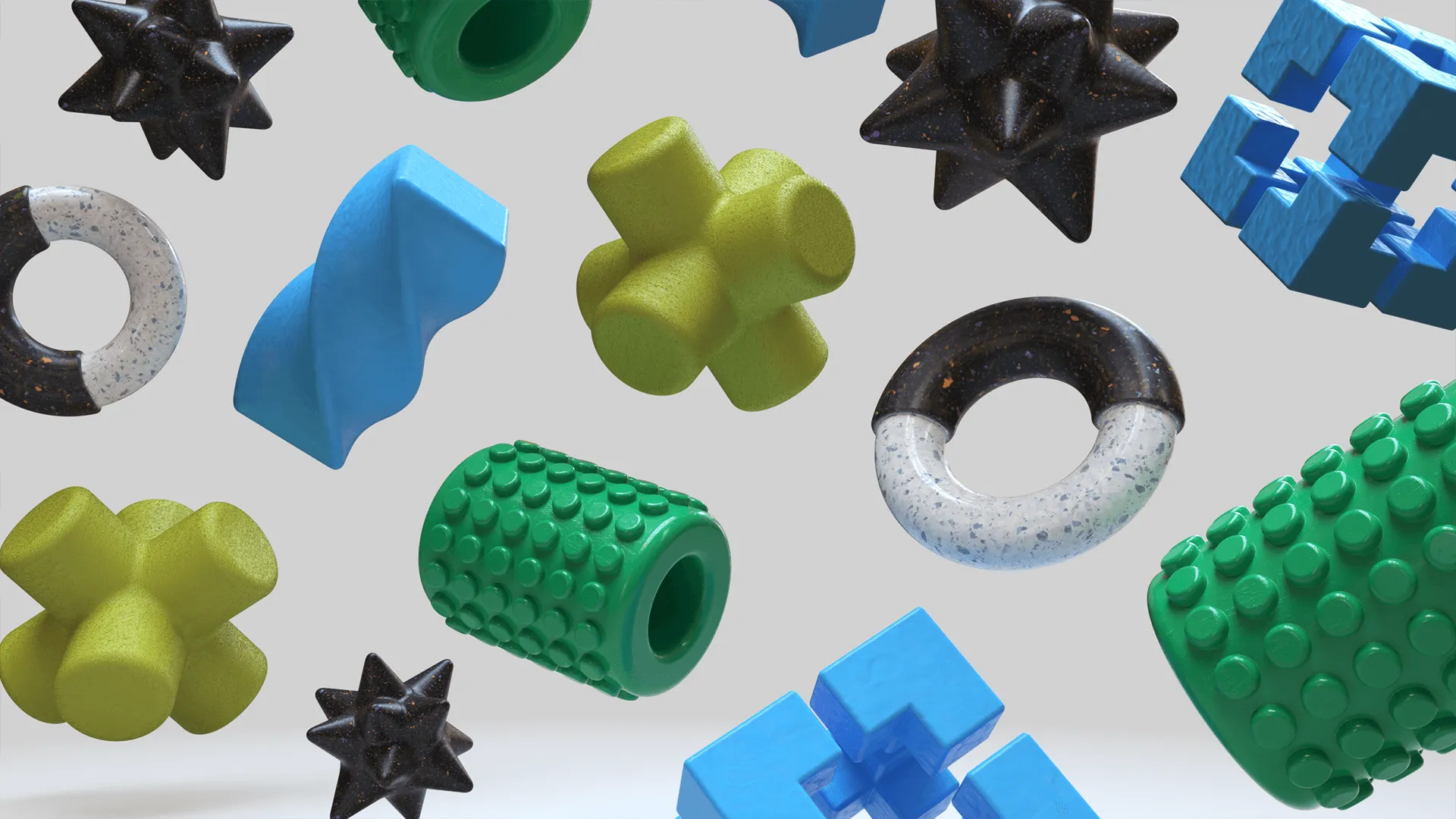
Creating photorealistic 3D renders traditionally requires sourcing texture maps from multiple websites, managing complex material nodes, and adjusting dozens of technical parameters. Most beginners struggle with UV mapping, PBR workflows, and shader networks.
Womp provides 500+ professionally crafted materials that apply with one click - no texture mapping knowledge required.
What are Super Materials?
Expertly designed photorealistic materials featuring authentic surface textures, bump mapping, reflections, and physical properties. The collection includes realistic representations of wood grain, metal finishes, stone surfaces, fabrics, glass, plastics, concrete, leather, and organic materials.
Key advantages:Over 500 materials with continuous additions
One-click application to any object
Full customization without technical complexity
Compatible with all Womp shapes and imported meshes
Integrates with Goop blending and Stain paintingMaterial categories available
Natural materials:Wood species with authentic grain patterns
Stone varieties including marble, granite, limestone
Clay textures for sculpted appearances
Organic surfaces like leather and skin tonesManufactured materials:Metals with accurate reflection properties (steel, aluminum, copper, brass)
Plastics in matte, glossy, and textured finishes
Glass variations from clear to frosted
Concrete and industrial surfacesTextile materials:Fabric weaves and patterns
Canvas and cloth textures
Synthetic textile surfaces
Specialized material finishesApplying Super Materials
Select object in canvas, open properties panel, navigate to materials section, choose from Super Materials collection. Material applies instantly with immediate visual preview. All customization controls appear automatically in properties panel.
Application scope:Standard Womp shapes and primitives
Curve objects and individual curve points
Imported 3D models and meshes
Complex objects created with Goop blendingCustomization controls
Override color
Maintains object's existing color while applying material's texture properties. Preserves color schemes when adding realistic surface detail. Essential for brand consistency and design specifications.
Use cases: Product mockups requiring specific brand colors, maintaining color palettes across designs, adding texture without color changes.
Lock texture
Links texture size to object scale, preventing distortion during resizing. Textures scale proportionally with objects maintaining consistent surface appearance. Eliminates stretched or compressed texture artifacts.
Workflow benefit: Resize objects freely without adjusting texture settings separately. Particularly useful for iterative design processes.
Texture positioning
Offset controls (X, Y, Z): Move texture across surface without moving object geometry. Fine-tune pattern alignment and positioning.
Rotation control: Rotate texture independently from object orientation. Align wood grain, adjust pattern directions, control visual flow.
Scale control: Adjust texture size relative to object surface. Enlarge or reduce pattern detail independently from object dimensions.
Height control: Modify bump mapping depth and surface relief intensity. Control how dramatically texture affects perceived surface topology.
Material colors
Many materials include color pickers for customization beyond base appearance. Some materials offer single color control, others provide multiple color selections for complex surfaces.
Application: Match specific design requirements, create color variations, coordinate material palettes across scenes.
Advanced material techniques
Goop blending integration
When objects blend via Goop tool, applied materials transition smoothly between surfaces. Creates organic material mixing effects impossible with traditional Boolean operations.
Creative applications:Gradual transitions between wood and metal
Organic material fusions for fantasy designs
Realistic wear patterns and material degradation
Composite surfaces with mixed propertiesStain tool layering
Apply Super Material as base layer, then paint additional textures using Stain tool for complex layered effects.
Process requirements:Apply Super Material to base object
Position stained object beneath target in scene list
Use Stain tool to paint secondary textures
Layer multiple stain effects for complexityResults: Multi-material surfaces, painted details on textured bases, custom wear and weathering effects.
Material types comparison
Normal materials: Basic solid colors without texture detail. Fastest rendering performance, suitable for simple designs and color blocking.
Pro materials: Enhanced materials with texture properties and improved surface quality. Middle tier between basic and photorealistic.
Super Materials: Full photorealistic rendering with comprehensive texture mapping, bump mapping, reflection properties, and extensive customization. Highest visual quality with increased processing requirements.
Performance considerations
Super Materials require more computational power than simpler material types due to:High-resolution texture map processing
Complex bump mapping calculations
Realistic light interaction simulations
Multiple texture layer computationsOptimization strategies:Apply Super Materials to foreground and hero objects
Use simpler materials for background elements
Balance visual quality against scene complexity
Test render performance during developmentTechnical specifications
Material count: 500+ expertly crafted options with regular additions
Compatibility: All Womp object types, curves, curve points, imported meshes, Goop-blended geometry
Customization parameters:Override color (toggle)
Lock texture (toggle)
Material colors (varies by material)
Texture offset (X, Y, Z coordinates)
Texture rotation (angle control)
Texture scale (size multiplier)
Texture height (depth intensity)Pro subscription requirement
Super Materials access requires Womp Pro subscription ($12.99/month or $119.99/year). Included with all Pro features without additional cost.
Also included in Pro:Professional 3D asset library
4K unlimited exports and 60 FPS videos
Advanced shapes (torus, pyramid)
SVG tools and custom font upload
10% 3D printing discount
Enhanced collaboration featuresFree users access Normal materials only. Pro materials and Super Materials require active subscription.
Use cases by industry
Product visualization: Apply accurate material representations to product designs. Wood finishes for furniture, metal textures for electronics, fabric materials for soft goods.
Architectural rendering: Realistic building material representation. Stone facades, wood flooring, concrete structures, glass windows with accurate properties.
Character design: Organic materials for skin, clothing fabrics, leather accessories. Realistic surface quality for character props and environments.
Jewelry design: Precious metal finishes, polished surfaces, gemstone materials. Professional quality renders for client presentations.
Industrial design: Technical materials for manufactured products. Plastic housings, metallic components, rubber elements, composite materials.
Best practices
Material selection strategy:Choose materials matching real-world references
Consider lighting conditions affecting reflective materials
Preview materials before committing to final choice
Test materials under different environmental lightingTexture customization approach:Start with default settings, make incremental adjustments
Use reference images to guide scale and positioning
Test appearance under multiple lighting scenarios
Balance detail level with rendering performanceScene optimization workflow:Prioritize Super Materials for important visual elements
Apply to hero objects and foreground geometry
Use simpler materials for secondary elements
Monitor real-time performance during material applicationGetting startedUpgrade to Womp Pro for Super Materials access
Select target object in scene
Open properties panel materials section
Browse 500+ Super Materials collection
Click material for instant application
Customize using available controls
Adjust texture positioning and scale as neededStart creating with Super Materials - requires Womp Pro subscription.
Learn more:Womp Pro features
Material system guide
Getting started with 3D modelingExternal references:PBR material workflow guide
Understanding material properties
3D texture resources comparison
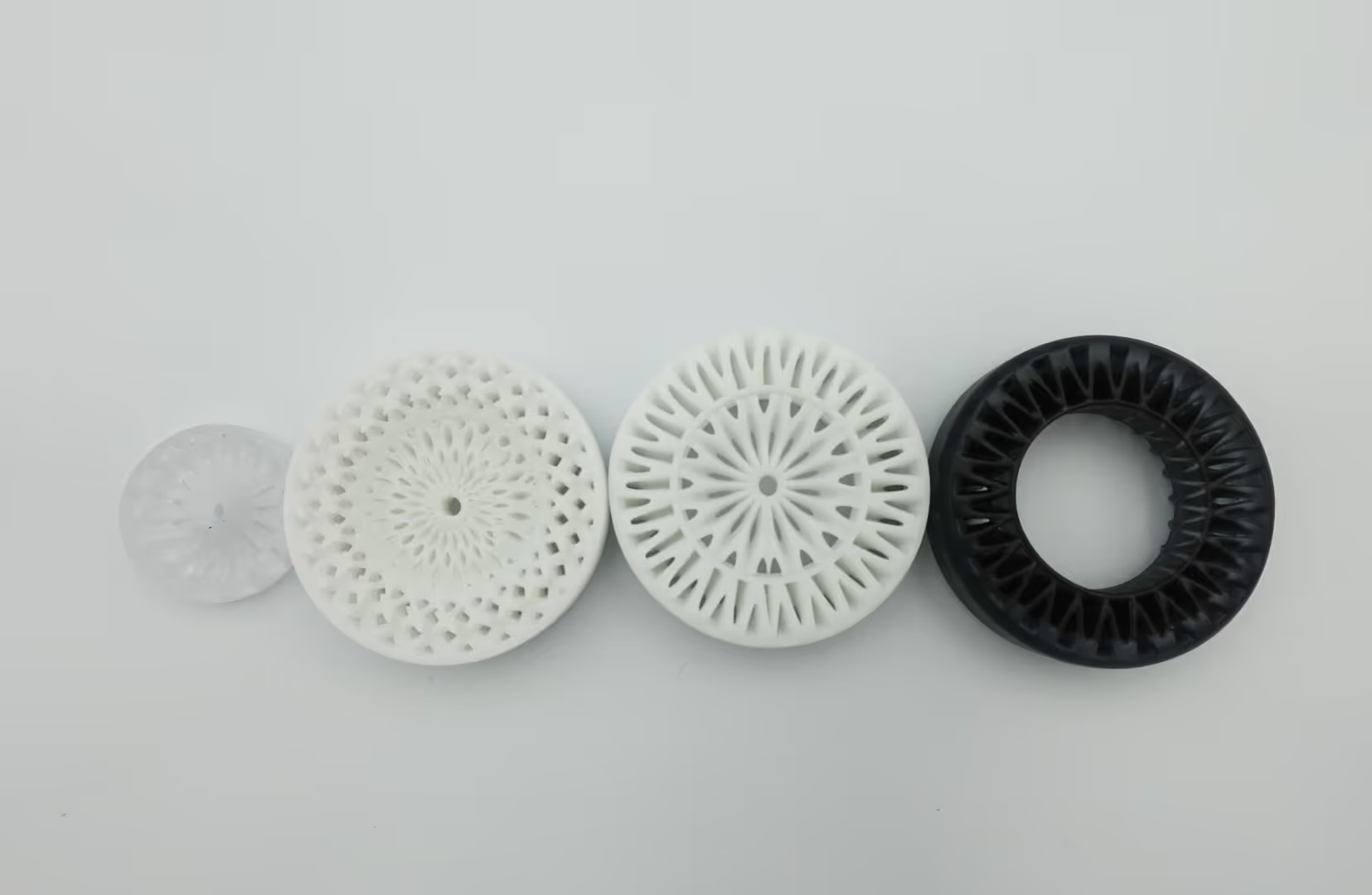
Design 3D models and order professional SLA prints directly in Womp. White plastic or clear resin, hollow printing for cost savings, 10% Pro discount.
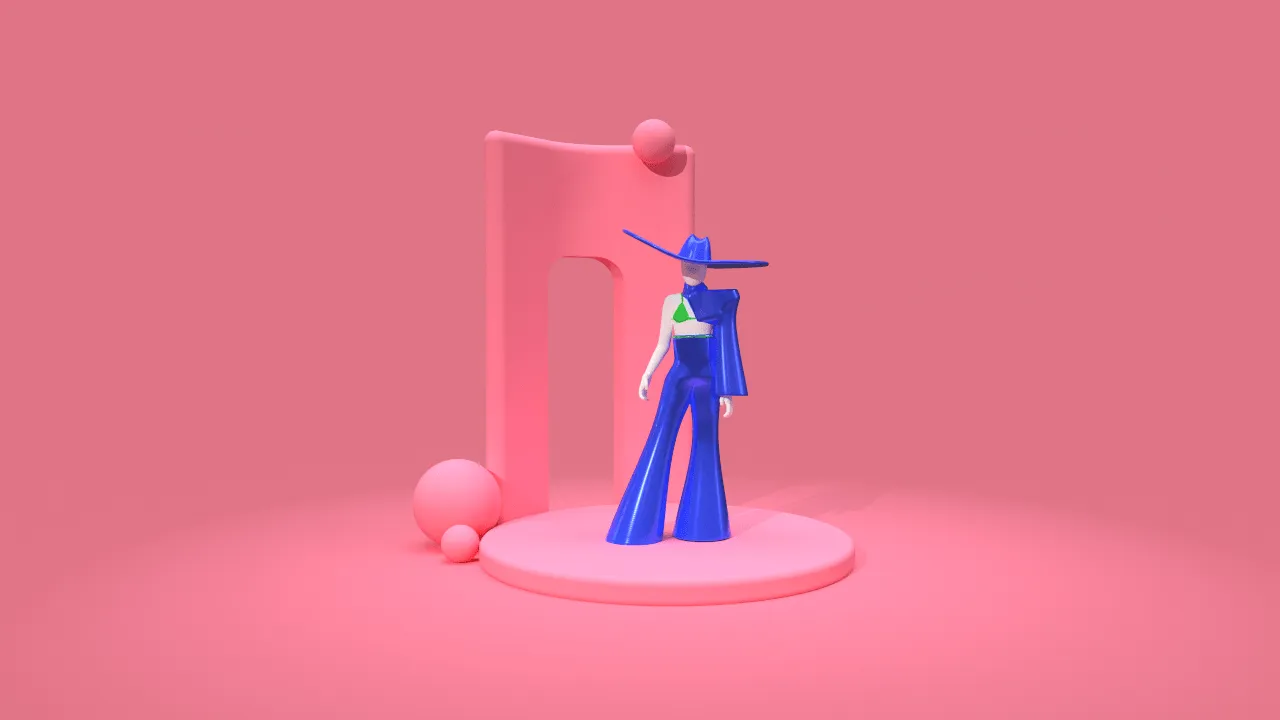
Discover how agencies and design teams use Womp Teams for seamless 3D collaboration, client reviews, and project management. Starting at $19.99/seat with unlimited viewers. Try it free for 14 days.
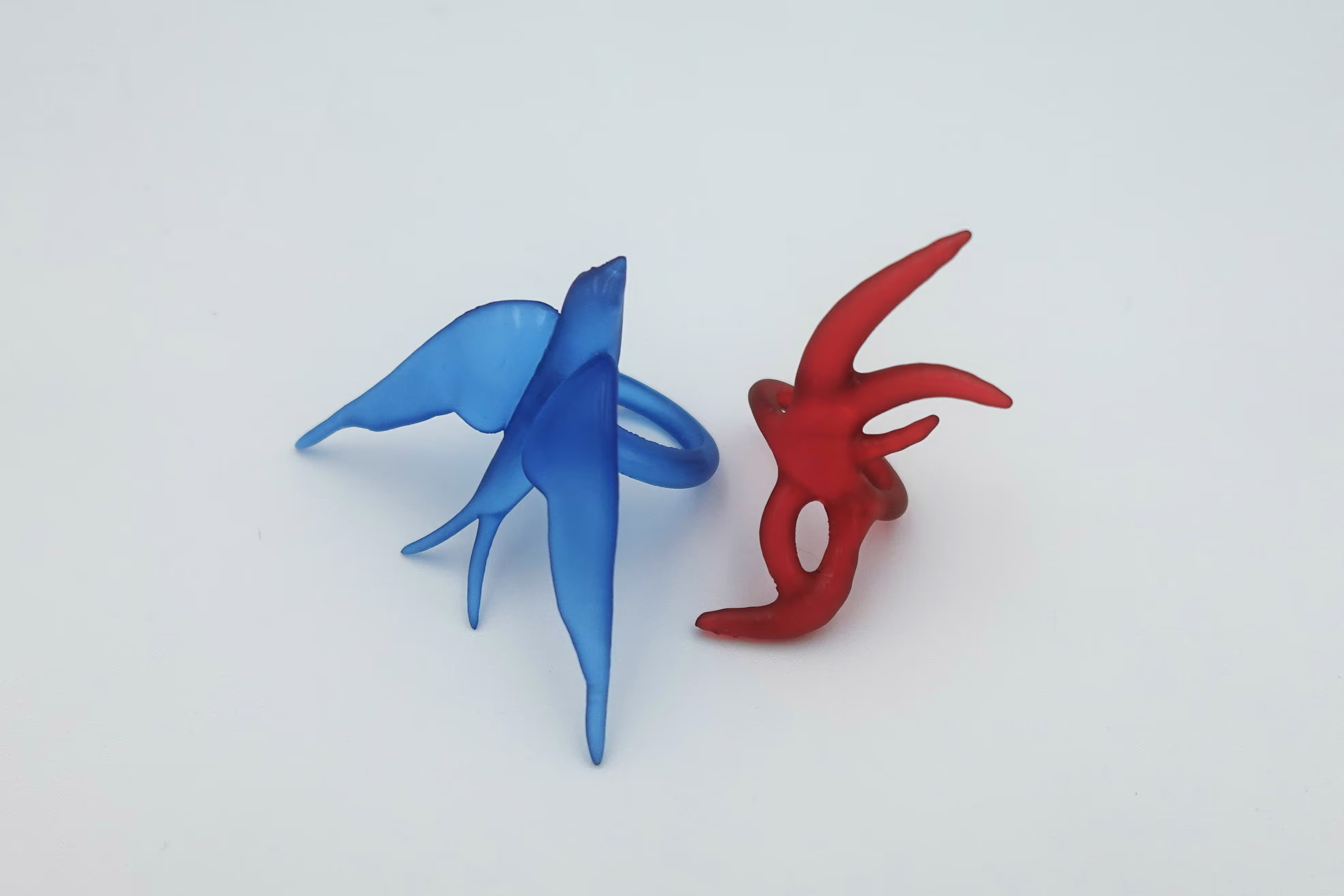
Learn how to start a profitable 3D printing business in 2025. Discover low-cost startup strategies, profitable niches, and how to create designs that sell—without expensive software.
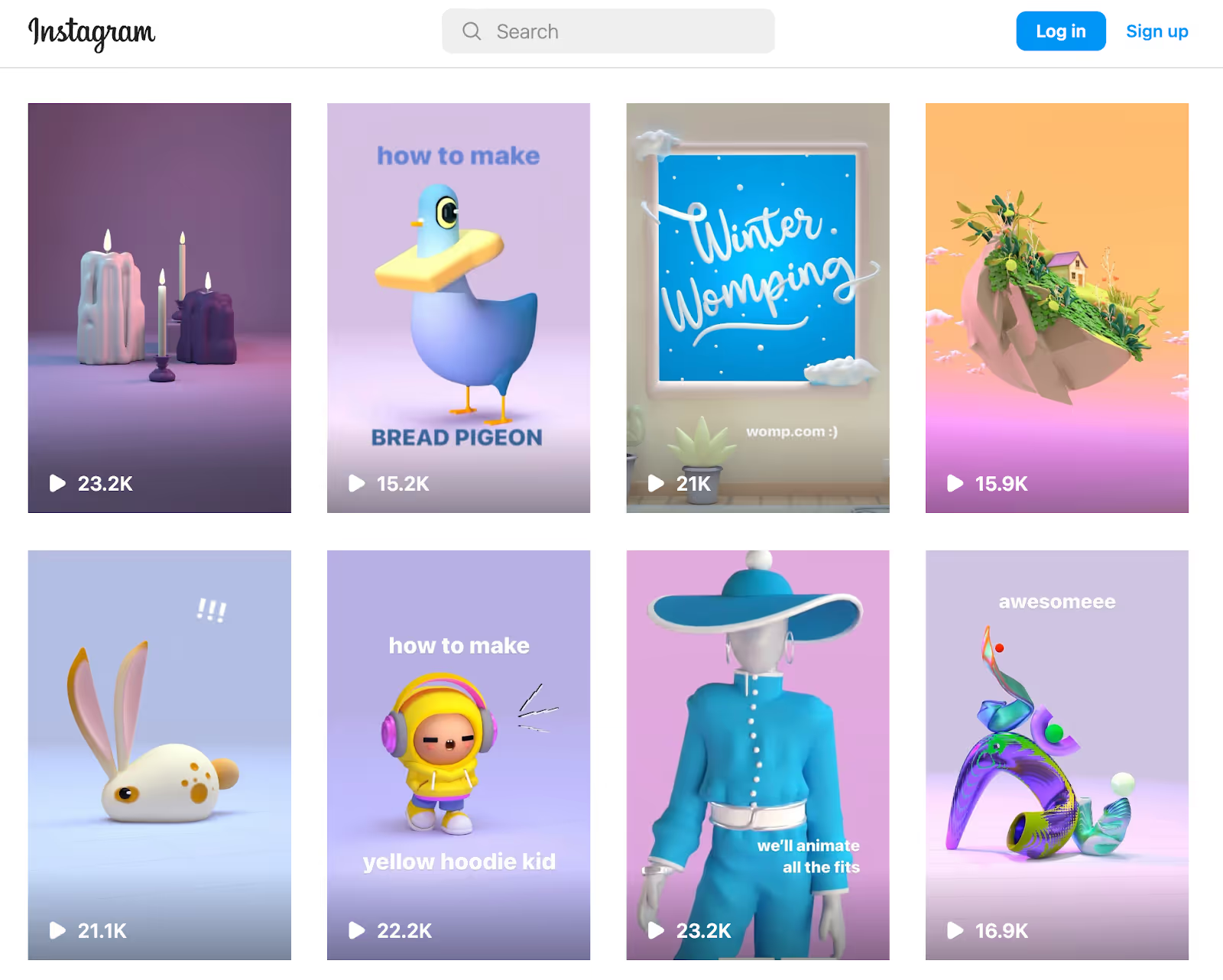
Learn how content creators use 3D modeling to create viral social media posts. Design stunning Instagram, TikTok, and YouTube content with browser-based tools—no expensive software required.
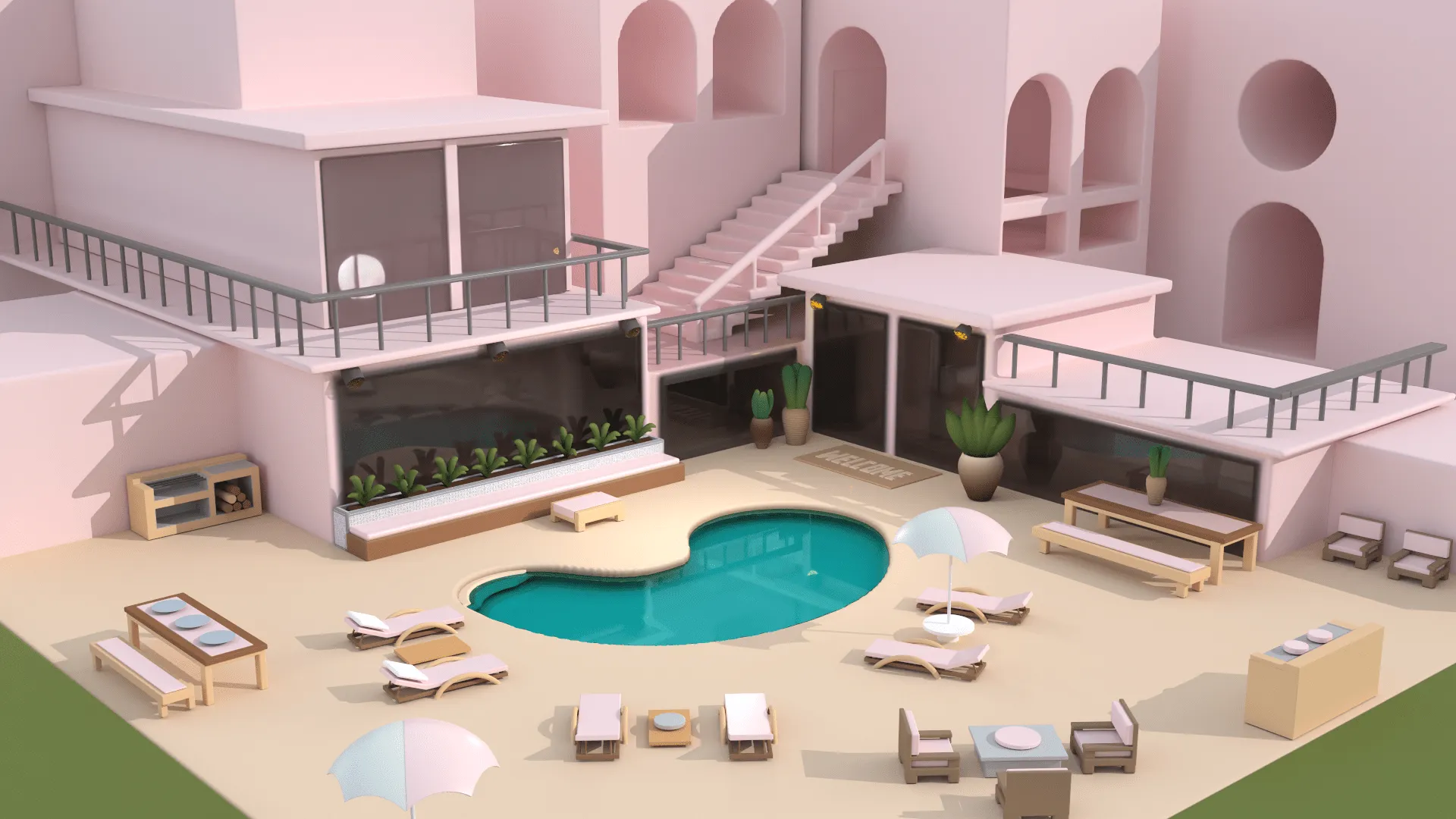
Discover how real-time 3D collaboration eliminates workflow bottlenecks for creative teams. Learn why browser-based platforms with simultaneous editing, shared workspaces, and flexible permissions outperform traditional file-based workflows.
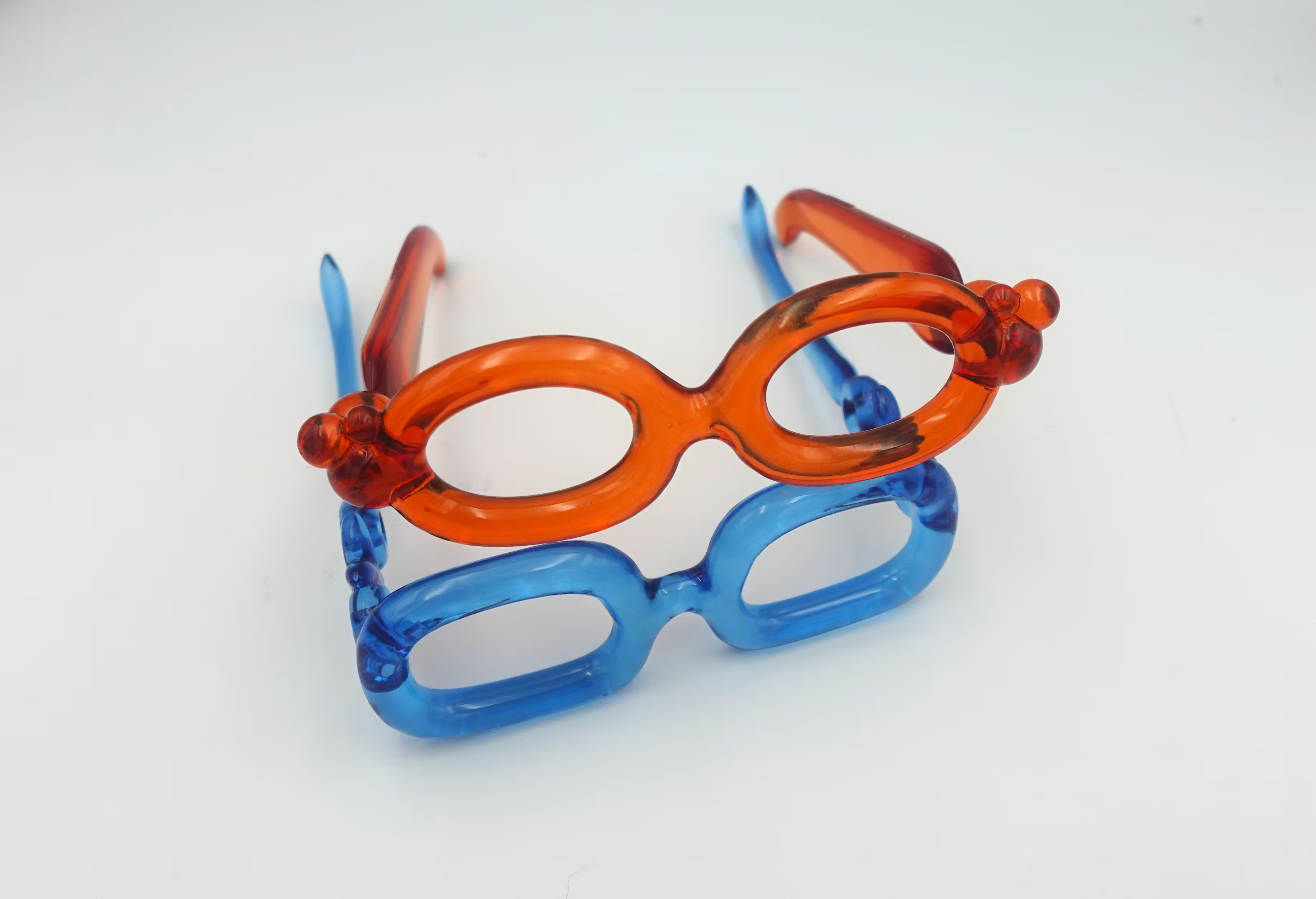
Looking for a custom 3d printing service that handles everything from design to delivery? Learn how Womp's integrated platform lets you create and 3d print your designs professionally with SLA technology, instant pricing, and Pro discounts.
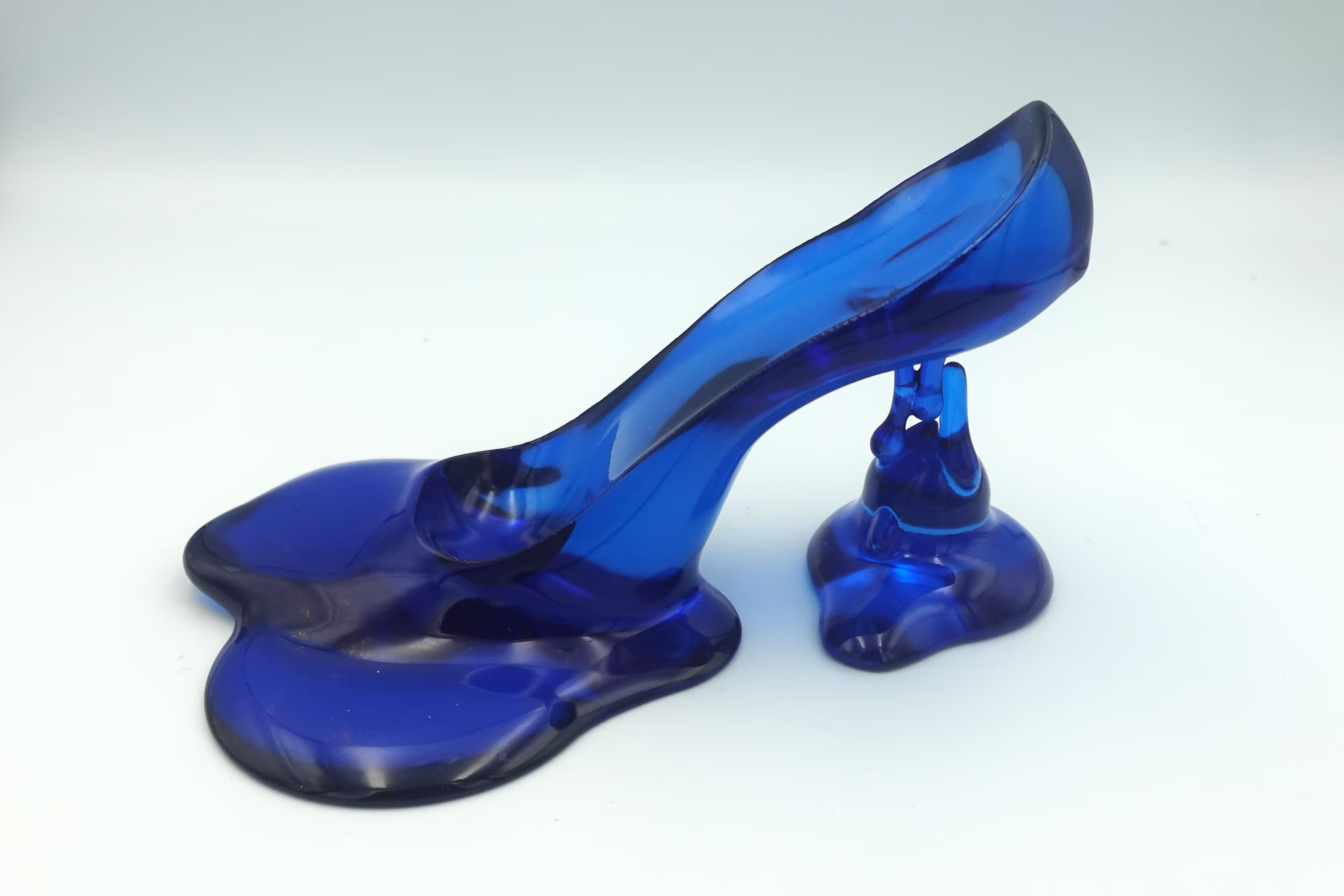
Deploy enterprise 3d printing solutions that integrate design and manufacturing across teams. Womp delivers professional workflows with global production capabilities.